
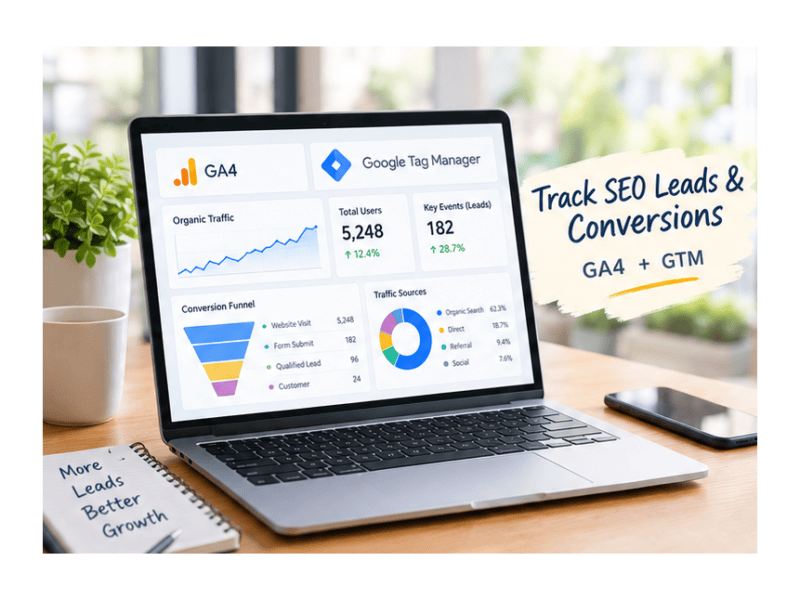
SEO lead tracking helps businesses understand how organic search visitors turn into enquiries, bookings, and customers. While increasing organic traffic is important, measuring the leads and conversions generated by SEO reveals the real business impact of your website.
Getting organic traffic to your website is a great start, but traffic alone does not define SEO success. A website might receive hundreds or even thousands of visitors from Google without generating meaningful enquiries, phone calls, demo requests, or sales.
This is where SEO conversion tracking becomes important.
By combining Google Analytics 4 (GA4) and Google Tag Manager (GTM), businesses can understand what visitors do after landing on their website through organic search. From submitting a contact form to clicking a call button, tracking these actions helps measure the real business impact of SEO.
In this guide, we’ll explain how to set up SEO lead and conversion tracking using GA4 and Google Tag Manager, what metrics to monitor, and how to use the collected data to improve your marketing strategy.
1. What Are SEO Leads and Conversions?
An SEO lead is a potential customer who discovers your website through organic search and takes an action that shows interest in your products or services.
A conversion is a valuable action completed by a visitor. Depending on your business goals, it could be a lead, purchase, booking, or another meaningful outcome.
Common SEO lead and conversion examples include:
- Contact form submissions
- Clicks on phone numbers or WhatsApp buttons
- Appointment or consultation bookings
- Product purchases
- Demo or quotation requests
- Newsletter sign-ups, when relevant to your goals
For example, if someone searches for digital marketing agency in Pune, visits your website, and submits an enquiry form, that journey can help demonstrate how organic search contributes to lead generation.
The goal is not just to track visitors, but to understand which organic visits generate business opportunities.
2. Why Use GA4 and Google Tag Manager for SEO Tracking?
GA4 and GTM serve different purposes and work together to create a more useful measurement system.
Google Analytics 4 (GA4)
GA4 collects and reports website interactions, traffic sources, engagement, and conversion-related events. It helps you understand how visitors arrive and what they do on your website.
Google Tag Manager (GTM)
GTM helps you deploy and manage tracking tags, triggers, and variables without repeatedly editing your website’s code for every measurement change.
Together, they allow you to measure lead-generating actions and connect those actions with traffic acquisition data.
However, GA4 does not automatically know whether every form submission or phone call is a genuine lead. Proper tracking configuration and testing are essential.
3. Step-by-Step: Set Up SEO Lead Tracking Using GA4 and GTM
Let’s walk through a practical setup for tracking leads on a business website.
Step 1: Set Up Google Analytics 4
If GA4 is already installed and collecting data, you can move to the next step.
- Open Google Analytics.
- Create or select your GA4 property.
- Navigate to Admin → Data collection and modification → Data streams.
- Select your website’s Web data stream.
- Copy your Measurement ID, which looks like
G-XXXXXXXXXX. - Ensure your Google tag is correctly installed on the website.
Your website should now send analytics data to GA4.
Important: If your website already has GA4 installed through a plugin, theme, or existing tracking code, check the implementation before adding another one. Duplicate tags can cause inaccurate reporting.
Step 2: Connect Google Tag Manager to Your Website
- Visit Google Tag Manager.
- Create a GTM account or select your existing account.
- Create a web container for your website.
- Install the GTM container code using the recommended instructions.
- Verify that the container loads correctly using GTM Preview mode.
For WordPress websites, GTM can be implemented using a suitable integration plugin or through a controlled code installation.
Avoid installing multiple GTM integrations simultaneously.
Step 3: Configure the GA4 Google Tag in GTM
Inside your GTM workspace:
- Open Tags → New.
- Choose the Google tag configuration.
- Enter your GA4 Measurement ID.
- Set the appropriate initialization trigger, typically All Pages.
- Save your tag.
- Use Preview mode to confirm it fires correctly.
If a Google tag is already installed and working, reuse or verify the existing implementation instead of creating a duplicate.
Step 4: Track Contact Form Submissions
Form submissions are one of the most valuable SEO lead signals for service-based businesses.
For example, a digital marketing agency may want to track when visitors submit its enquiry form.
There are several ways to implement this.
Recommended method: Track successful form submissions.
If your form supports a reliable success event or data layer event, use that as your trigger.
A practical implementation could follow this structure:
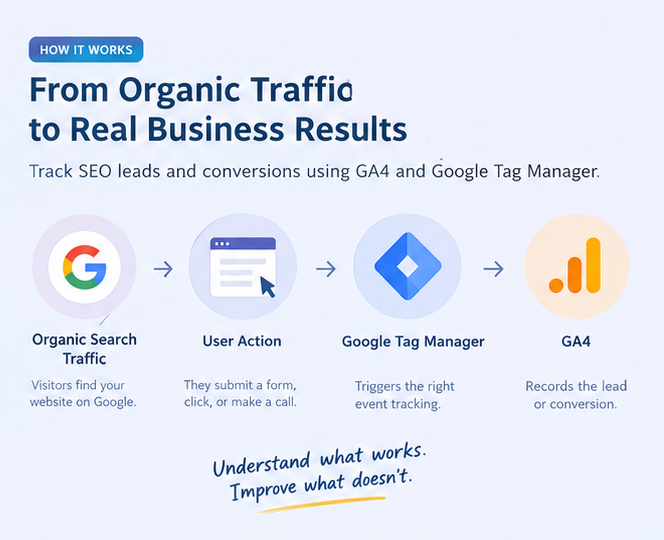
- Visitor submits the enquiry form
- Form submission succeeds
- GTM fires the GA4 event
- generate_lead
- GA4 records the lead event
How to configure it
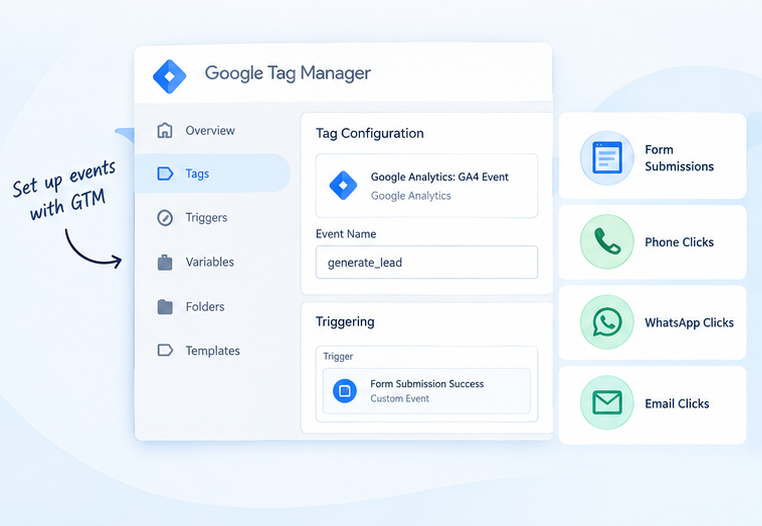
- Confirm how your website’s form reports a successful submission.
- Configure a GTM trigger based on that success signal, such as a custom data layer event.
- Create a new GTM tag using the Google Analytics: GA4 Event tag type.
- Enter the event name:
generate_lead. - Connect the successful submission trigger.
- Save and test the setup.
Example data layer event:
dataLayer.push({
  event: 'lead_form_success'
});
This event should be pushed only after a successful form submission, not merely when the visitor clicks the Submit button.
In GTM, create a Custom Event trigger for lead_form_success, then attach the GA4 Event tag with event name generate_lead.
This example assumes you can modify the form’s success handling. The actual implementation depends on the form plugin or website setup.
Google Analytics also has automatic form interaction measurement in some implementations, but a generic form_submit event may not represent a verified, successful lead. Google recommends identifying the specific lead form and creating an appropriate event. Analytics Help+1
Step 5: Track Phone, Email and WhatsApp Clicks
Visitors don’t always submit forms. Some prefer calling or messaging a business directly.
You can measure these interactions separately.
| Action | Suggested event name |
|---|---|
| Successful lead form | generate_lead |
| Phone link click | phone_click |
| WhatsApp link click | whatsapp_click |
| Email link click | email_click |
| Consultation booking | booking_complete |
For phone and email links, GTM can use click triggers that match link URLs, such as:
tel:for phone callsmailto:for email links
For WhatsApp, configure the trigger based on the actual WhatsApp link or button implementation.
A click is not necessarily a confirmed lead. Clicking a phone number doesn’t prove the call connected, and clicking WhatsApp doesn’t prove that a message was sent.
Keep these events separate from actual lead submissions to avoid inflating your lead numbers.
Step 6: Mark Important Events as Key Events in GA4
In GA4, important business actions are called key events.
Once your lead event is configured:
- Open Google Analytics.
- Go to Admin → Data display → Events or the Key events section, depending on your interface.
- Locate
generate_lead, or create it as a new key event. - Mark the event as a key event.
- Verify that it appears when a successful test lead is recorded.
GA4 allows you to mark meaningful interactions as key events and use them to evaluate marketing performance. Analytics Help+1
For a lead generation website, focus on genuine enquiry submissions, confirmed bookings, and other meaningful business outcomes.
Avoid marking every click, scroll, or page view as a key event.
4. How to Test Your SEO Conversion Tracking
Before publishing your GTM changes, test the complete tracking journey.
Tracking QA checklist
0/7Open GTM Preview mode and connect your website.Submit a test enquiry using valid test information.Confirm that the success trigger fires only once.Check that the correct GA4 event tag fires.Open GA4 DebugView or Realtime to verify the event.Confirm that no duplicate tags or events are being recorded.Submit and publish the tested GTM version.
You can also use the GA4 DebugView to inspect event names and parameters during testing.
Remember that standard reports may take time to reflect new data, and testing tools do not guarantee that every reporting or attribution setting is correct.
5. How to Identify Leads Coming From Organic Search
After implementing event tracking, the next step is understanding which leads came from SEO.
In GA4:
- Open Reports → Acquisition → Traffic acquisition.
- Review the Session default channel group dimension.
- Find Organic Search.
- Review session metrics and key events.
- Compare Organic Search with other channels.
This helps you understand how organic traffic contributes to key events.
For deeper analysis, use GA4 Explorations to compare landing pages, traffic sources, and key events.
Metrics you should monitor
| Metric | What it tells you |
|---|---|
| Organic sessions | Visits from organic search |
| Organic users | Users acquired or active from organic search, depending on the report |
| Key events | Important actions recorded |
| Session key event rate | Percentage of sessions with at least one key event |
| Landing page performance | Which entry pages attract and engage visitors |
| Engaged sessions | Sessions meeting GA4’s engagement criteria |
One useful metric is the organic session key event rate.
For example, if your website receives 1,000 organic sessions and 30 of those sessions include at least one lead key event:

Your session key event rate for that example is 3%.
This is an illustrative example, not an industry benchmark. Also, this metric measures sessions with a key event, not the number of unique leads or qualified prospects.
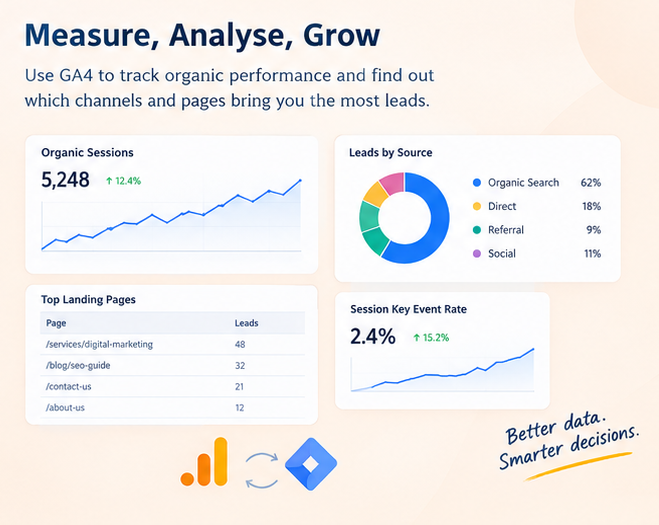
6. Build an SEO Lead Tracking Dashboard
A dashboard makes your SEO reporting easier to understand and share with your team or clients.
You can use GA4 reports or connect GA4 with Looker Studio to create a custom SEO performance dashboard.
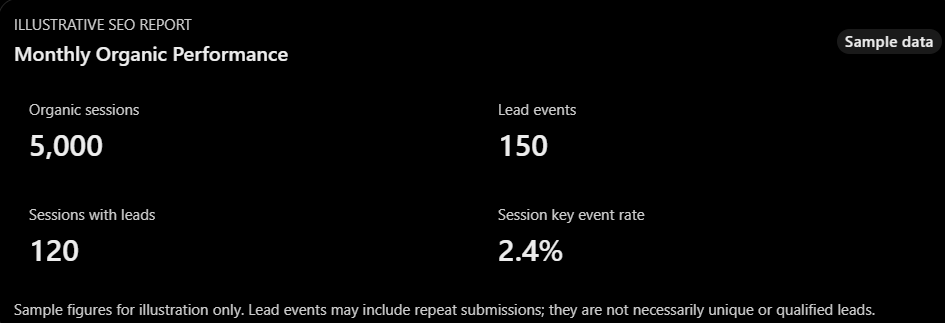
Your dashboard can include:
- Organic traffic trends
- Lead events by month
- Landing pages generating leads
- Organic session key event rate
- Lead source and campaign breakdown
- Qualified leads and sales outcomes, if CRM data is integrated
For more advanced reporting, combine analytics with CRM data to understand which leads became actual customers.
7. Connect SEO Performance With Google Search Console
GA4 explains what happens after visitors reach your website. Google Search Console (GSC) helps you understand how your website performs in Google Search.
Together, these tools provide a more complete picture.
| Google Search Console | GA4 |
|---|---|
| Search impressions | Website sessions |
| Search clicks | Engagement and user activity |
| Search queries | Key events and conversions |
| Search position | Landing page performance |
You can connect Search Console with GA4 to access relevant organic search reporting, subject to the integration’s available dimensions and reporting limitations.
For query-level insights, continue using Search Console directly.
This combination can help answer questions such as:
- Which SEO landing pages generate the most leads?
- Which pages receive clicks but produce few enquiries?
- Which high-impression pages need better messaging or calls to action?
- Which organic landing pages attract qualified prospects?
Keep in mind that Search Console clicks and GA4 sessions will not always match due to differences in measurement, attribution, consent, timing, and session definitions.
8. Common SEO Conversion Tracking Mistakes to Avoid
Even a well-designed tracking setup can produce misleading data if it’s not maintained properly.
1. Tracking button clicks instead of successful submissions
A click doesn’t always mean a lead was generated. Track the confirmed form success signal whenever possible.
2. Counting duplicate events
Multiple tracking tags, repeated callbacks, or form reloads can inflate event numbers.
3. Marking micro-interactions as leads
Scrolling, visiting the contact page, or clicking a phone number shouldn’t automatically be treated as a qualified lead.
4. Ignoring organic attribution
Review the correct acquisition dimensions and understand whether you’re analyzing first-user acquisition or session acquisition.
5. Forgetting to test after website updates
Theme changes, Elementor edits, form plugin updates, and cache or script changes can affect tracking.
6. Ignoring lead quality
A large number of form submissions does not always translate into business growth. Monitor qualified enquiries, sales opportunities, and actual revenue where possible.
7. Overlooking consent and privacy
Implement analytics in accordance with applicable privacy requirements, consent choices, and data protection practices. Avoid sending personal information such as names, phone numbers, email addresses, or message contents to GA4 through event parameters, URLs, or page titles.
9. How to Turn SEO Conversion Data Into Better Results
Tracking is only useful when you act on the insights.
Here are practical ways to improve your SEO strategy using conversion data.
- Improve high-traffic, low-conversion pages: Review content relevance, calls to action, mobile experience, page speed, and enquiry flow.
- Study high-converting landing pages: Identify what makes those pages effective and apply similar principles where appropriate.
- Improve internal linking: Guide visitors from informational blog posts toward relevant service pages.
- Optimize calls to action: Test clear, helpful messages such as “Request a Consultation” or “Get a Quote.”
- Focus on lead quality: Identify which landing pages and organic acquisition segments bring qualified enquiries.
- Review performance monthly: Track changes in organic traffic, lead generation, conversion rates, and sales outcomes.
For example, if an SEO guide receives substantial organic traffic but few visitors explore your services, consider adding contextual internal links and a relevant CTA rather than simply publishing more content.
The goal is to make every important organic landing page serve a clear purpose.
Conclusion
SEO success isn’t only about ranking higher on Google or increasing website traffic. It’s about attracting the right audience and turning organic visibility into meaningful business results.
By combining GA4 and Google Tag Manager, businesses can measure lead-generating actions, evaluate landing page performance, and understand how organic search contributes to their marketing goals.
Start with accurate form submission tracking, configure your key events, verify your data, and review your performance regularly. As your tracking becomes more mature, connect your analytics with lead quality and sales outcomes for a clearer picture of SEO ROI.
At The Vanilla Theory, we believe effective digital marketing combines visibility, strategy, and measurable results. When you understand what drives enquiries, you can make smarter decisions and build a more effective SEO strategy.
Want to turn your organic traffic into meaningful leads? A well-planned SEO strategy and reliable conversion tracking can help your business move beyond rankings and focus on real growth.


